The other day, I received a rather nerve-wracking consultation from an acquaintance who primarily focuses on WordPress-based web production.
This person was reportedly working on a local environment using backup data to prepare for a client’s site redesign.
However, during the process, an error notification generated in the local environment was accidentally sent to the actual client.
Fortunately, since the client was a solo entrepreneur, it didn't escalate into a major crisis. Still, this is the kind of accident that could easily damage professional trust depending on the situation.
I frequently provide technical advice to peers and clients involved in WordPress projects, and I often find myself helping out with this kind of troubleshooting.
Using this incident as a starting point, I want to organize the risks of accidental email sends during WordPress local restores and outline the safest prevention methods available.
When restoring a client site to a local environment for work, one of the most overlooked risks is the "accidental email send."
When you restore a site using tools like All-in-One WP Migration, WPvivid, or UpdraftPlus, it’s not just the WordPress core that is transferred—the SMTP settings often come along with it.
As a result, error notifications or form submission alerts triggered in the local environment can actually be delivered to the client. This is a very real hazard in the development workflow.
Why Does Accidental Email Sending Happen?
Most backup and migration plugins restore the entire site, including the database.
Therefore, the following information is included in the restoration:
- WP Mail SMTP settings
- Sender email address
- Administrator email address
- Contact form notification settings
- WooCommerce notification settings
In short, WordPress in your local environment becomes "ready to send emails using the same SMTP credentials as the production site."
Does This Happen with Every Restoration Plugin?
To be blunt, the same issue occurs whether you use All-in-One WP Migration, WPvivid, or UpdraftPlus.
This is because the cause is not unique to any specific plugin; it lies in the "very structure of restoring SMTP settings along with the database."
For reference, each restoration plugin has different strengths. Here is how they compare regarding the features relevant to this topic:
| Item | UpdraftPlus (Free) | All-in-One WP Migration | WPvivid |
|---|---|---|---|
| Primary Purpose | Specialized for scheduled backups | Specialized for site migration | Balance of migration + backup |
| Domain Change | △ Manual handling required (Automation is paid) | ✅ Supported for free | ✅ Supported for free |
| File Format | Split backup format | Single archive | Single or structured |
| UX | Slightly more steps | Extremely simple | Relatively simple |
| Partial Restore | ✅ Strong | ❌ Weak | ✅ Supported |
| Scheduled Backup | ✅ Very Strong | △ Weak | ○ Strong |
As shown, while UpdraftPlus is certainly capable of migration, its core strength lies in backup tasks. On the other hand, All-in-One WP Migration and WPvivid are designed to make site migration as seamless as possible.
Common Dangerous Scenarios
- The client receives a Fatal Error notification.
- Test order emails are sent to actual customers.
- Contact form notifications are sent accidentally.
- Member registration alerts are misdirected.
Especially when using WP Mail SMTP, which completely hijacks wp_mail() for SMTP delivery, almost all standard WordPress emails become targets for transmission.
Weaknesses of Common Countermeasures
| Method | Issue |
|---|---|
| Deactivating SMTP plugins | Easy to forget after restoration |
| Deleting SMTP settings | Prone to manual human error |
| Disabling via functions.php | Disappears when the theme is overwritten |
| MU Plugin in wp-content | May be deleted/overwritten during restoration |
While these may seem effective at first glance, they all carry the risk of being overwritten by the restoration tool.
The Safest Method: Placing an MU Plugin Outside wp-content
The method I currently recommend most is placing an MU Plugin outside the wp-content directory to forcibly halt email transmission.
The benefits of this approach are significant:
- It is not overwritten by restoration tools.
- It is activated automatically.
- There is no risk of forgetting to deactivate it.
- It works across AIOWM, WPvivid, and UpdraftPlus.
As a side note, MU Plugins (Must-Use Plugins) are a unique mechanism distinct from regular plugins.
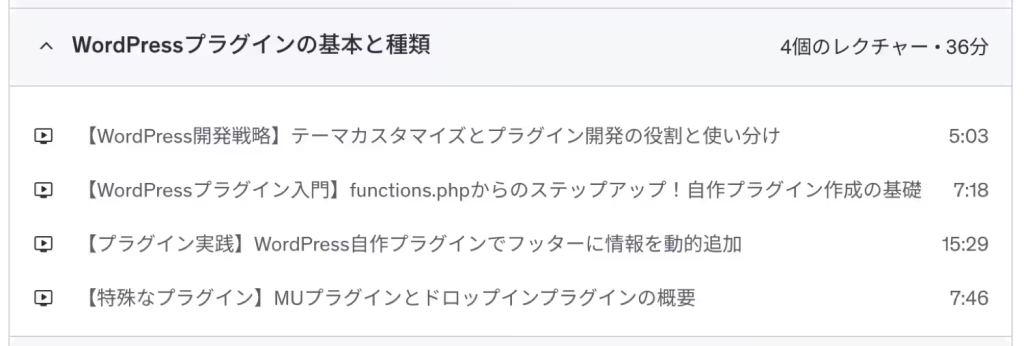
I cover the basics of this in my Udemy course, "WordPress Plugin Development Course," where I introduce it as a standalone lecture as shown below:
Setup Instructions
1. Add to wp-config.php
define( 'WPMU_PLUGIN_DIR', dirname( ABSPATH ) . '/dev-mu-plugins' );Be sure to place this definition before the wp-settings.php line (require_once ABSPATH . 'wp-settings.php';). Since WordPress determines the MU Plugin loading directory at startup, it won't be recognized correctly if placed after it.
If you need to perform email sending tests in your local environment, simply delete this definition or comment it out.
Note: Since this method changes where MU Plugins are loaded, be cautious if your site already uses wp-content/mu-plugins. If existing MU Plugins are present, check the impact before applying this change.
2. Create dev-mu-plugins/disable-emails.php
<?php
/**

Plugin Name: Halt Email Sending for Local/Dev Environments
*/

add_filter( 'pre_wp_mail', function( $return, $atts ) {
return true;
}, 10, 2 );
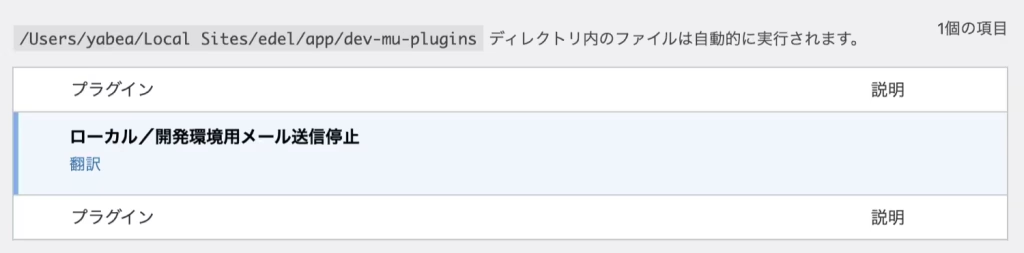
Once the settings are correctly completed, it will appear in the "Must-Use" list in the WordPress admin area as follows:
Why This Method is So Robust
The WordPress pre_wp_mail filter is an official hook that allows you to halt processing at the very beginning of the wp_mail() function.
Essentially, it stops WordPress email sending at its root.
Furthermore, since it can be set to treat the attempt as a "successful send," you won't see any disruptive error messages.
Caveat: It’s Not a Silver Bullet
Even with this method, the following cases cannot be stopped:
- Direct calls to custom SMTP libraries
- Direct sending via SendGrid SDK
- External API-based email sending
- Webhook notifications
However, for standard WordPress projects, it provides more than enough defensive capability.
Conclusion
Currently, the safest way to prevent accidental email sends during WordPress local restores is the "External MU Plugin Method."
Because it doesn't depend on backup plugins and protects you automatically even after a restore, this method is incredibly powerful in a development setting.
To prevent accidents that could jeopardize client relationships, I highly recommend implementing this in your local environments.