About the “WordPress 3-Minute Hooking” Series
Hello, WordPress engineers! We are Edel Hearts, based in Kawagoe, Saitama, specializing in WordPress development, customization, and technical support. In this series, we bring you “WordPress 3-Minute Hooking”.
Inspired by the classic TV show “3-Minute Cooking,” this series delivers quick, practical WordPress techniques. This time, we’ll show you how to enable SVG file uploads.
In this series, we focus on practical techniques using WordPress hooks, implemented with just a few lines in functions.php.
Why Allow SVG Uploads?
In recent versions of WordPress (5.8+), modern image formats like WebP are supported by default. This means you can upload WebP images without custom code.
Furthermore, since WordPress 6.5, support for AVIF—a next-generation image format with superior compression—has also been added.
However, as of 2026, SVG uploads are still restricted by default due to security concerns (XML-based script injection risks). Until native validation is implemented, enabling SVG uploads via hooks remains necessary.
In modern WordPress: “WebP and AVIF are standard, SVG requires explicit permission via hooks.” This reflects a balance between performance and security.
The Importance of SVG in Modern Web Design
SVG (Scalable Vector Graphics) provides lightweight, high-quality graphics that never lose clarity when scaled.
- High resolution: Sharp on all devices, including 4K and mobile
- Lightweight: Smaller than PNG/JPG for icons and logos
- Interactive: Supports CSS/JS animations
- Accessible: Text-based, SEO and screen-reader friendly
- Transparency: Flexible for design layouts
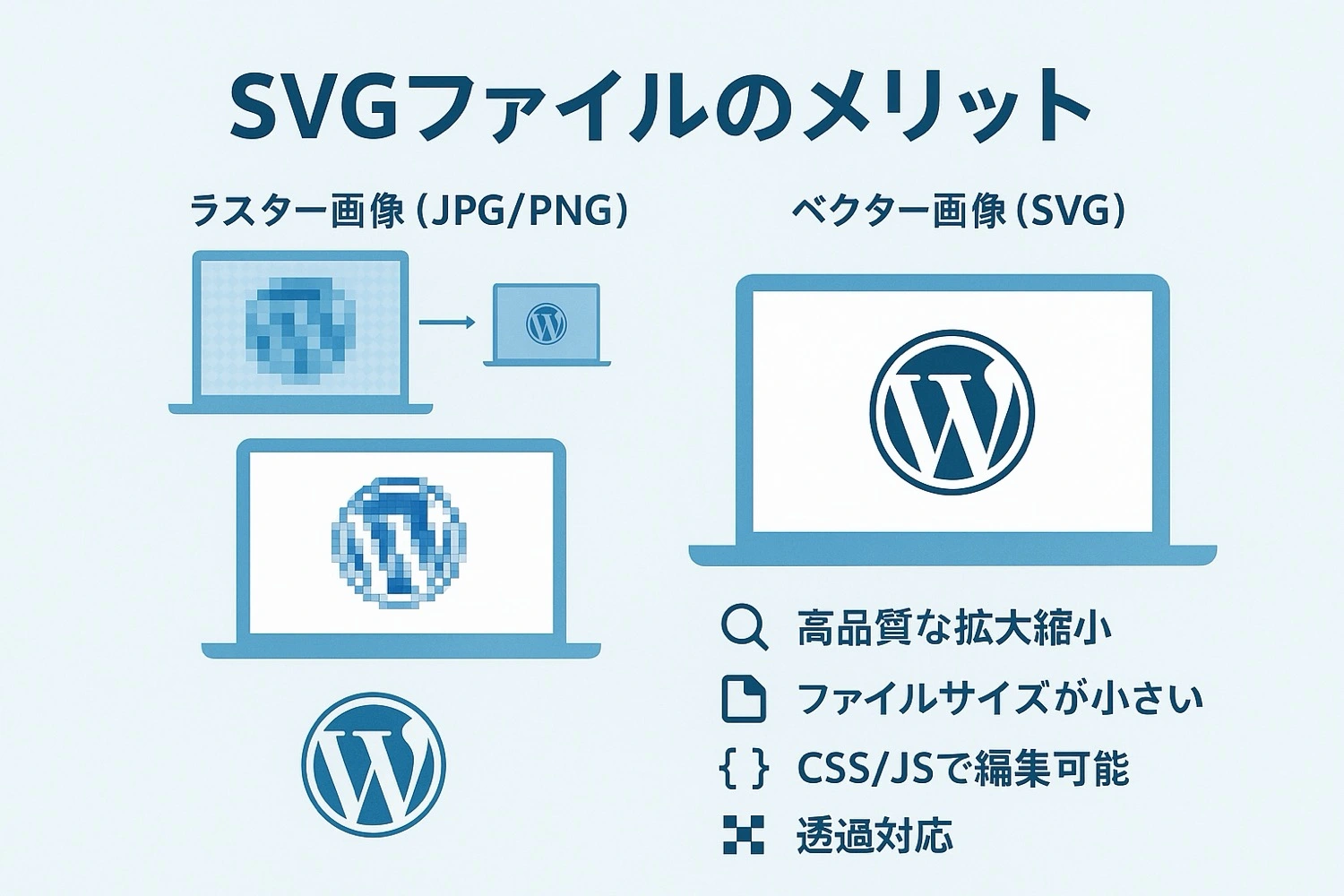
However, SVG files can contain embedded scripts, making proper security handling essential.
SVG Upload Hook Code
add_filter('upload_mimes', 'wp3min_allow_svg_upload');

function wp3min_allow_svg_upload($mimes) {
    $mimes['svg']  = 'image/svg+xml';
    $mimes['svgz'] = 'image/svg+xml';
    return $mimes;
}
How It Works
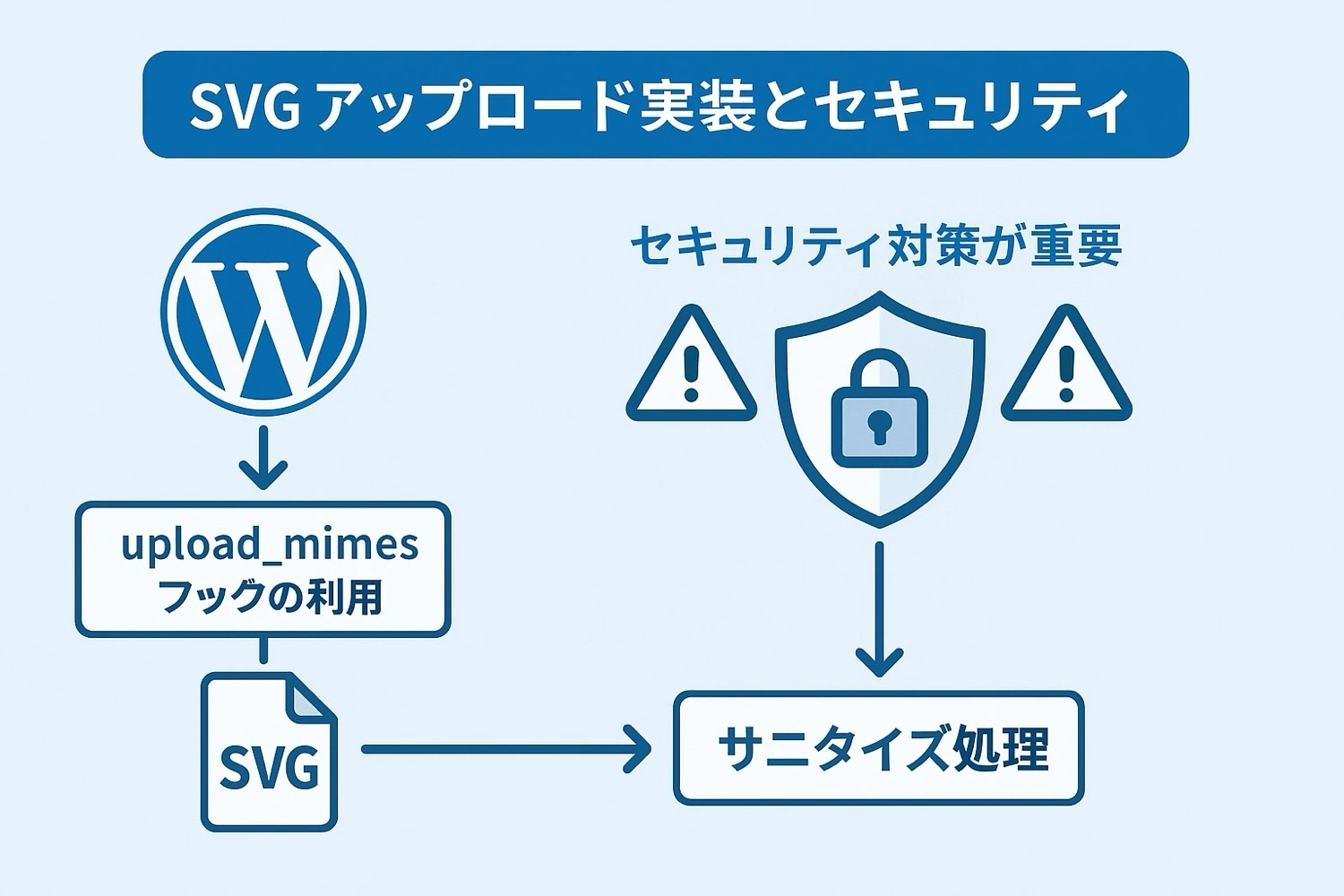
This hook modifies the allowed MIME types in WordPress, enabling SVG uploads.
$mimes['svg']: Allows standard SVG files$mimes['svgz']: Allows compressed SVG files
Implementation Steps
- Go to Appearance → Theme Editor
- Open
functions.php - Add the code above
- Save changes
- Upload an SVG via Media Library
That’s it—SVG uploads are now enabled!
Security Measures (Critical)
SVG files can contain malicious code. Always implement security measures.
1. SVG Sanitization
function wp3min_sanitize_svg($file) {
    if ($file['type'] === 'image/svg+xml') {
        $content = file_get_contents($file['tmp_name']);
        $content = preg_replace('/]*>(.*?)/is', '', $content);
        file_put_contents($file['tmp_name'], $content);
    }
    return $file;
}
add_filter('wp_handle_upload_prefilter', 'wp3min_sanitize_svg');
2. Restrict Upload Permissions
function wp3min_allow_svg_for_admins($mimes) {
    if (current_user_can('administrator')) {
        $mimes['svg']  = 'image/svg+xml';
        $mimes['svgz'] = 'image/svg+xml';
    }
    return $mimes;
}
add_filter('upload_mimes', 'wp3min_allow_svg_for_admins');
Advanced Techniques
Fix SVG Preview in Media Library
add_action('admin_head', function() {
    echo '<style>
    .attachment img { width:100% !important; height:auto !important; }
    </style>';
});
Enable SVG Dimensions
add_filter('wp_prepare_attachment_for_js', function($response, $attachment) {
    if ($response['mime'] === 'image/svg+xml') {
        $svg = simplexml_load_file(get_attached_file($attachment->ID));
        if ($svg) {
            $attrs = $svg->attributes();
            $response['sizes'] = [
                'full' => [
                    'url' => $response['url'],
                    'width' => (int)$attrs->width,
                    'height' => (int)$attrs->height
                ]
            ];
        }
    }
    return $response;
}, 10, 3);
Important Notes
- Always sanitize SVG files
- Use trusted sources only
- Watch for plugin conflicts
- Check hosting restrictions
Real Issue: When Correct Code Still Fails
Even with correct hooks, uploads may fail. In my case, the issue was:
The SVG file’s XML declaration was commented out.
<!--?xml version="1.0"?-->Fix it to:
<?xml version="1.0"?>WordPress validates file contents strictly, so this matters.
Conclusion
- Use
upload_mimesto enable SVG - SVG improves performance and design quality
- Always apply security measures
- Advanced handling improves usability
At Edel Hearts, we provide WordPress customization and performance optimization support. Feel free to reach out!
FAQ
Q: SVG upload fails due to security restrictions
A: Check server settings or .htaccess configuration.
Q: SVG displays incorrectly
A: Fix preview settings or verify file structure.
Q: Best way to use SVG on frontend?
A: Inline SVG for small use cases, SVG sprites for large sets.
For WordPress customization or plugin development, visit:
Our Services