The upcoming major WordPress update, version 7.0, is now just around the corner.
This update is expected to end support for PHP 7.2 and 7.3. Depending on your environment, this could lead to problems such as “being unable to update” or “your site no longer working properly”.
In this article, I’ll explain the changes that may come with WordPress 7.0 before they happen, and summarize the steps you should take before updating. Knowing these points in advance can help you prevent trouble before it starts.
What Is WordPress 7.0? Understanding Its Role as a Major Update
WordPress 7.0 is a major update.
WordPress has the following two types of updates:
- Major updates (for example, 6.9 → 7.0): These include new features, specification changes, and changes to environment requirements
- Minor updates (for example, 6.9.1 → 6.9.2): These mainly focus on security fixes and bug fixes
This 7.0 release is not just a simple feature update. It is an important release that also affects environment requirements, especially the PHP version. It would be risky to assume that “you can just update as usual.”
For reference, the major update timeline and the main changes so far are as follows. From the introduction of Gutenberg in 5.0 to Full Site Editing support from 6.0 onward, WordPress has continued to evolve significantly on a regular basis.
| Version | Release Timing | Main Changes |
|---|---|---|
| 5.0 | December 2018 | Introduction of the Gutenberg block editor (the biggest turning point) |
| 5.1 | February 2019 | PHP version warnings and the addition of Site Health |
| 5.2 | May 2019 | Improved Site Health and Recovery Mode for fatal errors |
| 5.3 | November 2019 | Block editor improvements and PHP 7.4 support |
| 5.4 | March 2020 | New blocks and expanded REST API support |
| 5.5 | August 2020 | Automatic updates for plugins and themes, plus native lazy-loading support for images |
| 5.6 | December 2020 | Application Passwords and PHP 8.0 support |
| 5.7 | March 2021 | One-click HTTP to HTTPS migration and improved email change workflow |
| 5.8 | July 2021 | Block-based widgets and experimental introduction of Full Site Editing (FSE) |
| 5.9 | January 2022 | Official support for Full Site Editing (FSE) and the default theme Twenty Twenty-Two |
| 6.0 | May 2022 | Performance improvements, block locking, and a better writing experience |
| 6.1 | November 2022 | More flexible templates and fluid typography support |
| 6.2 | March 2023 | Site Editor improvements and style revisions |
| 6.3 | August 2023 | Major Site Editor enhancements and performance improvements (100+ enhancements) |
| 6.4 | November 2023 | New default theme Twenty Twenty-Four and block hooks |
| 6.5 | April 2024 | Font Library, Block Bindings API, and performance improvements |
| 6.6 | July 2024 | Block override features and improvements to performance and accessibility |
| 6.7 | November 2024 | Default theme Twenty Twenty-Five and editor improvements |
| 6.8 | April 2025 | Improved Style Book and more intuitive content creation features |
| 6.9 | December 2025 | Improved block editor usability and related refinements |
| 7.0 | April 9, 2026 | End of support for PHP 7.2 / 7.3 and raised environment requirements |
[Important] Support for PHP 7.2 / 7.3 Is Ending
WordPress 7.0 is expected to end support for PHP 7.2 and 7.3.
This may cause issues such as:
- The update button no longer appearing
- A white screen after updating (fatal error)
- Plugins and themes no longer working properly
Especially on older servers or sites that have been left unattended for years, there are many cases where site owners are affected without even realizing it.
Possible Problems After the Release (Predictions)
From a practical standpoint, after WordPress 7.0 is released, I expect to see more inquiries like the following:
- “My site stopped displaying after I updated”
- “I can no longer log in to the admin dashboard”
- “A plugin stopped working”
- “An error appears, but I don’t know what caused it”
In many of these cases, the cause will be PHP version compatibility and plugin compatibility. In other words, this is often not a WordPress problem, but an environment problem.
What You Must Do Before Updating
① Take a Backup (Most Important)
Always take a backup before updating. The two main targets are:
- The database (posts, settings, user information)
- wp-content (themes, plugins, and uploaded images)
The key is to make sure you are in a state where you can restore the site immediately if something goes wrong.
Recommended Backup Plugin: UpdraftPlus
Among free backup plugins, the one with the strongest track record is UpdraftPlus. It has been installed on more than 15 million sites worldwide and also supports Japanese.
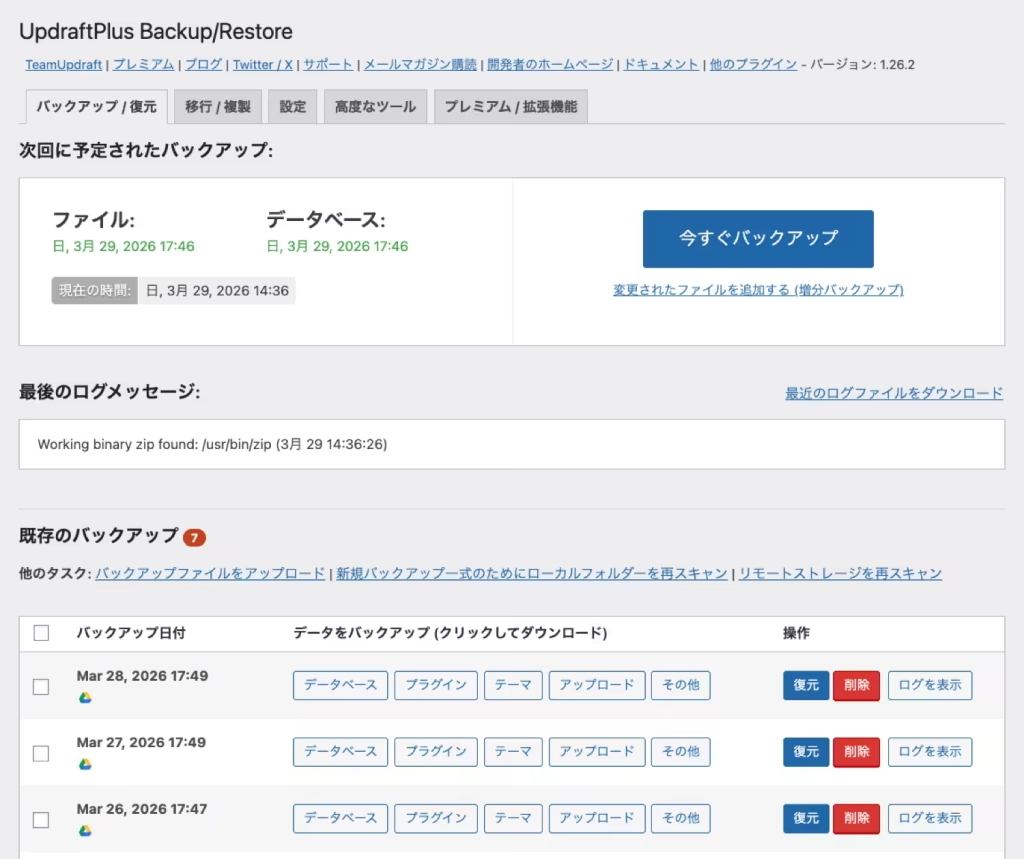
The basic setup steps are as follows:
- In the WordPress admin dashboard, go to “Plugins → Add New,” search for “UpdraftPlus,” then install and activate it
- Open “Settings → UpdraftPlus Backups”
- In the “Settings” tab, configure the backup frequency for files and the database (once per week is a good starting point)
- Select Google Drive or Dropbox as the storage destination and connect it (both can be used for free)
- After saving the settings, click “Backup Now” to create a manual backup before updating
Tip: Get into the habit of running “Backup Now” every time right before an update. Just a few minutes of work can dramatically shorten recovery time if something goes wrong.
② Check the PHP Version
Make sure your server’s PHP version is 7.4 or higher (8.1 or higher is recommended).
There are two ways to check:
- If you check from the WordPress dashboard: Go to “Tools → Site Health → Info → Server” and look for “PHP version”
- If you change it from your hosting control panel: Most hosting providers, such as Sakura Internet, Xserver, and ConoHa WING, allow you to switch the PHP version from their control panel
Changing to PHP 8.0 or later may cause existing plugins and themes to stop working. Always take a backup before making the change.
③ Update Plugins and Themes to the Latest Versions
Older plugins may not be compatible with WordPress 7.0. Update all plugins and themes to their latest versions in advance. If a plugin has not been updated for a long time, you should also consider replacing it with an alternative.
④ Test in a Staging or Local Environment If Possible
Ideally, you should test the update in a test environment instead of applying it directly to your live site. One of the safest approaches is to clone the site into a local environment such as Local (Local by Flywheel) and test it there first.
Summary: WordPress 7.0 Is Both an Opportunity and a Risk
WordPress 7.0 brings advantages such as better performance, new features, and improvements to the development environment. At the same time, it can also become a major risk for sites running on outdated environments.
Preparation makes all the difference. In particular, taking backups and checking the PHP version are measures you can start dealing with right away.
| Checklist Item | What to Do | Priority |
|---|---|---|
| Backup | Create one with UpdraftPlus | ★★★ Highest priority |
| Check PHP version | Use Site Health or your hosting control panel | ★★★ Highest priority |
| Update plugins and themes | Bulk update them from the dashboard | ★★☆ Important |
| Test in a staging environment | Clone the site to a local environment and test it | ★☆☆ If possible |
If You Feel Uneasy About Updating WordPress
If you are unsure whether your site is affected, feel nervous about updating, or have experienced update-related problems in the past, then it may be better not to force yourself to handle it alone. Leaving it to a specialist is also a valid choice.
▶ WordPress Maintenance Support Service
▶ WordPress Troubleshooting and Support
I provide support to help you update safely and continue running your site with peace of mind.